1. [Developer](/)
2. [Documentation](/documentation/ "Documentation")
3. Fortnite
* [Unreal Engine](/documentation/en-us/unreal-engine)
* [Fortnite](/documentation/en-us/fortnite)
* [MetaHuman](/documentation/en-us/metahuman)
* [Twinmotion](/documentation/en-us/twinmotion)
* [RealityScan Mobile](/documentation/en-us/realityscan-mobile)
* [Fab](/documentation/en-us/fab)
4. [Fortnite Documentation](/documentation/en-us/fortnite/fortnite-documentation "Fortnite Documentation")
5. [Using Devices](/documentation/en-us/fortnite/using-devices-in-fortnite-creative "Using Devices")
6. Items Gallery Devices
Items Gallery Devices
=====================
Use the Items Gallery to offer players a quick status buff.

On this page
You can use the **Items Gallery** to offer players a quick status buff during gameplay. These status buffs will temporarily give the consuming player an increase of either health, shield, speed boost, or jump boost.
Selecting the Items Gallery will place eight different items that you can decide which best suits your needs. The preferred item can be copied by equipping the cell phone device and left-clicking to drag a duplicate as explained in **[Moving and Removing the Device](/documentation/en-us/fortnite/using-consumables-gallery-devices-in-fortnite-creative#movingandremovingthedevice)**.
Players can consume the item by standing near it and pressing **E**. Players will not be able to equip these items in their inventories.
Players can also stack items that offer status buffs, such as the **Hop Rock** and **Pepper**.
Finding and Placing the Device
------------------------------
[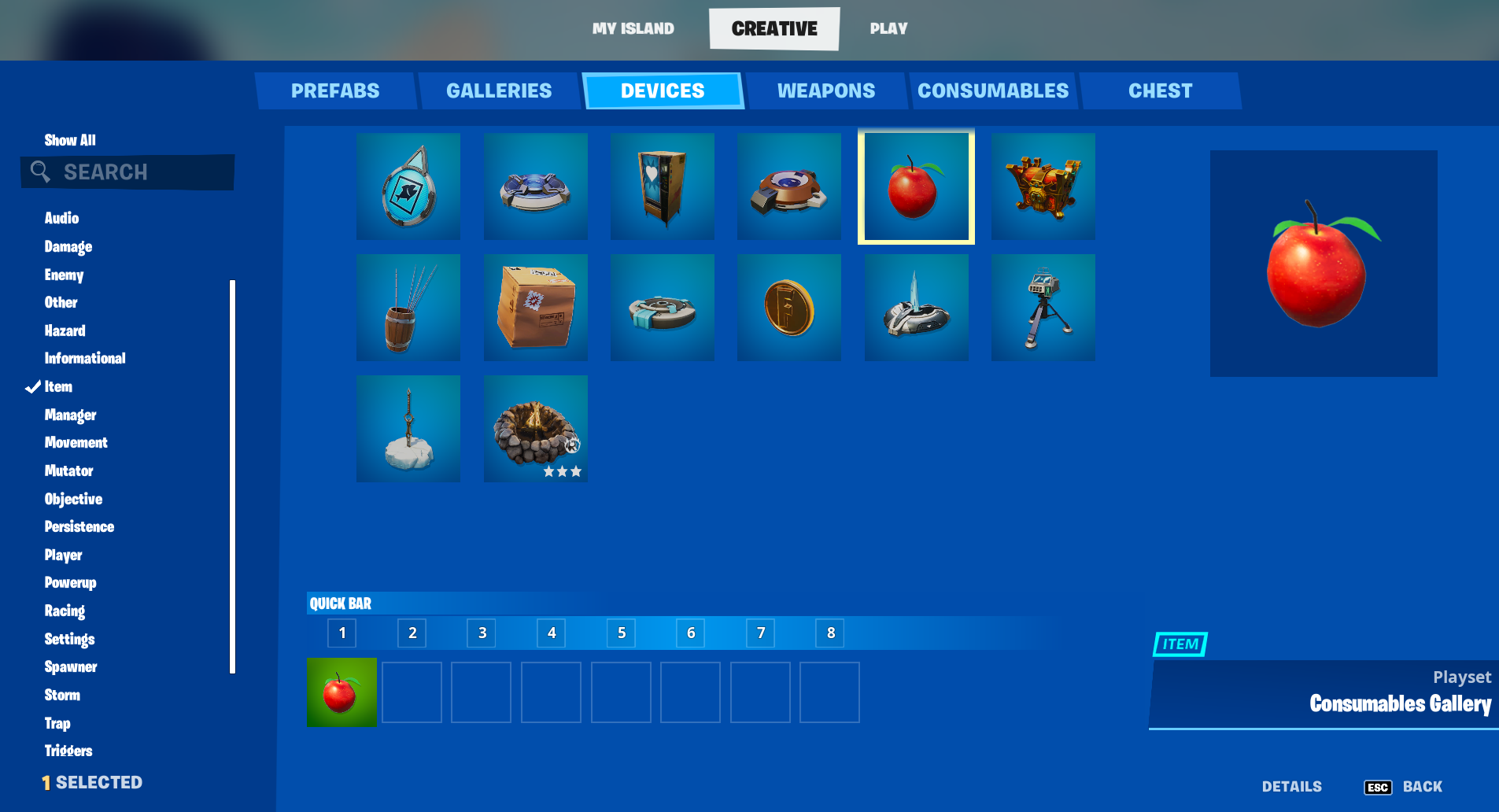](https://d1iv7db44yhgxn.cloudfront.net/documentation/images/d5198228-fa0b-439e-9358-2e1c748404cc/consumables-gallery-menu.png)
Click image to enlarge.
1. From [**Create mode**](/documentation/en-us/fortnite/fortnite-creative-glossary#create-mode), press the **Tab** key to open the [**Creative inventory**](/documentation/en-us/fortnite/fortnite-creative-glossary#creative%20inventory) window.
2. Click the **Devices** tab and scroll to select the device. You can also use the **Search** box or the **Categories** panel on the left to find your device.
3. Click **PLACE NOW** to [**place**](/documentation/en-us/fortnite/fortnite-creative-glossary#place) immediately, or put the device in the **[\*\*QUICK BAR\*\*](/documentation/en-us/fortnite/fortnite-creative-glossary#quick-bar)** to place later.
4. Press **Esc** to return to your island in Create mode. Use your [**phone**](/documentation/en-us/fortnite/fortnite-creative-glossary#phone) to position the device, then left-click to place it. Press **P** to detach the device from your phone, then press **P** again to reactivate your phone.
Moving and Removing the Device
------------------------------
You can move items to a desired location by aiming at it with the cell phone equipped, then right-clicking to drag it to the desired position. You can remove any unwanted items from the gallery by aiming at the device with your phone and pressing **X**.
Item Variations
---------------
### Apple

Consume the Apple to instantly replenish five points of damaged health.
### Banana

Consume the Banana to instantly replenish five points of damaged health.
### Pepper

Consume the Pepper to instantly replenish five points of damaged health and add a temporary speed boost.

The Pepper's status buff will last for 60 seconds. It’s duration can be noted by a red, streaking trail with steam blowing out of the player's ears.
### Cake

Consume the Cake to instantly replenish five points of damaged health and five points of shield.
### Mushroom

Consume the Mushroom to instantly replenish five points of shield.
### Slurp Mushroom

Consume the Slurp Mushroom to gradually replenish ten points of damaged health.
### Hop Rock

Consume the Hop Rock to add a status buff that amplifies the jump ability.

The Hop Rock's status buff will last for 30 seconds. It's duration can be noted by a blue glow surrounding the player.
### Ice Cream

Consume the Ice Cream to instantly replenish five points of damaged health.
* [devices](https://dev.epicgames.com/community/search?query=devices)
* [item](https://dev.epicgames.com/community/search?query=item)
* * *
Ask questions and help your peers [Developer Forums](https://forums.unrealengine.com/categories?tag=fortnite)
Write your own tutorials or read those from others [Learning Library](https://dev.epicgames.com/community/fortnite/learning)
On this page
* [Finding and Placing the Device](/documentation/en-us/fortnite/using-items-gallery-devices-in-fortnite-creative#findingandplacingthedevice)
* [Moving and Removing the Device](/documentation/en-us/fortnite/using-items-gallery-devices-in-fortnite-creative#movingandremovingthedevice)
* [Item Variations](/documentation/en-us/fortnite/using-items-gallery-devices-in-fortnite-creative#itemvariations)
* [Apple](/documentation/en-us/fortnite/using-items-gallery-devices-in-fortnite-creative#apple)
* [Banana](/documentation/en-us/fortnite/using-items-gallery-devices-in-fortnite-creative#banana)
* [Pepper](/documentation/en-us/fortnite/using-items-gallery-devices-in-fortnite-creative#pepper)
* [Cake](/documentation/en-us/fortnite/using-items-gallery-devices-in-fortnite-creative#cake)
* [Mushroom](/documentation/en-us/fortnite/using-items-gallery-devices-in-fortnite-creative#mushroom)
* [Slurp Mushroom](/documentation/en-us/fortnite/using-items-gallery-devices-in-fortnite-creative#slurpmushroom)
* [Hop Rock](/documentation/en-us/fortnite/using-items-gallery-devices-in-fortnite-creative#hoprock)
* [Ice Cream](/documentation/en-us/fortnite/using-items-gallery-devices-in-fortnite-creative#icecream)